
Imagine checking your Google Analytics only to see your traffic flatlining. Your website is throwing a 502 Bad Gateway error. Your current hosting provider says it is your fault because a plug-in used too much memory. Then, they try to upsell you to a $100 per month plan you do not need.
I have seen hundreds of growing business owners and beginners freeze in terror at this exact moment. They stick with terrible, slow, and expensive web hosts because they are terrified of migrating their site. They worry they will lose data, mess up their SEO, or break their design.
Let us clear the air immediately. Migrating a WordPress site is not black magic. It is just moving files and a database from Server A to Server B.
Choosing the right host can save hundreds of dollars in the long run. It stops you from paying for fake “security add-ons” and bloated resource packages. If you want a fast website that never drops offline, you need to understand how web servers actually handle your data.
Why Is Your WordPress Site Slower Than It Used to Be?
WordPress is a dynamic content management system. Every single time a visitor lands on your site, your server works hard. It runs PHP code, queries a database, fetches your text, and pulls your images together to build a page on the fly.
Cheap hosting companies stuff thousands of websites onto a single shared physical machine. Think of it like living in a crowded apartment complex where one neighbor can use up all the hot water. If another website on your shared server gets a traffic spike, your website starves for resources and grinds to a halt.
What Technical Specs Actually Matter in 2026?
Stop reading the glossy marketing pages of hosting companies. They love to throw around flashy words that mean absolutely nothing. Let us break down the actual hardware and software infrastructure that dictates your site speed.
NVMe SSD vs Standard SSD: What is the Real Difference?
Do not buy any hosting plan in 2026 that uses traditional solid-state drives (SSDs). Demand NVMe SSDs (Non-Volatile Memory Express).
Standard SSDs connect to the server using older SATA cables. This creates a massive speed bottleneck. NVMe drives sit directly on the server’s motherboard. They read and write data up to six times faster than standard SSDs.
WordPress relies heavily on database lookups. When a user searches your store or loads a blog post, the server digs through your database files. NVMe drives execute these searches instantly. This cuts your page load times down by a full second or more.
LiteSpeed vs Nginx vs Apache: Which Web Server Wins?
Web server software sits on the machine and handles incoming requests from web browsers. Most old-school hosting companies still run Apache. To be honest, Apache is an outdated dinosaur. It creates a new process for every single visitor, which quickly eats up your server’s memory.
Nginx changed the industry by using an event-driven architecture. It can handle tens of thousands of concurrent connections using a fraction of the RAM. It is incredibly stable and runs some of the biggest websites on the planet.
LiteSpeed is the crown jewel for WordPress hosting right now. It drops directly into Apache setups but runs circles around it. The real secret is the LSCache (LiteSpeed Cache) plug-in. This plug-in connects directly to the server core. It bypasses heavy PHP processing completely to serve your pages instantly. If you run a high-traffic blog or an WooCommerce store, pick a LiteSpeed server.
RAM and CPU Cores: Why Do They Matter for High Traffic?
Every time a user adds an item to a shopping cart or fills out a form, a CPU core must process that specific action. Standard caching plug-ins cannot save you here because these actions are dynamic and customized for that individual user.
If your host only gives you 1 shared CPU core and 500MB of RAM, your site will crash during a promotion or newsletter blast. Look for plans that guarantee at least 1 Dedicated CPU Core and 2GB of RAM. This gives your site enough room to handle dozens of checkouts at the exact same millisecond.
Data Center Locations and Latency: Why Physical Distance Rules Speed
Data travels at the speed of light, but fiber-optic cables still face physical resistance. This delay is called latency.
I have seen many people make this mistake: they run a local bakery in Chicago but buy a hosting plan located in a data center in London. Every click on their site must travel across the Atlantic ocean and back.
Choose a host that lets you select your specific data center location. Pick the city physically closest to your actual customers. Combine this with a content delivery network (CDN) to store your static images worldwide, and your site will feel instant.
How to Migrate WordPress Hosting in 5 Controlled Steps
Follow this workflow to move your site with zero downtime. Do not cancel your old hosting plan until step five is completely finished and verified.
1. Generate Your Site Backup
Log into your existing WordPress dashboard. Install a free migration plug-in like All-in-One WP Migration or Duplicator. Run a full export of your site. This bundle includes your database, themes, plug-ins, media uploads, and core WordPress configurations. Download this file directly to your computer.
2. Prepare Your New Hosting Account
Purchase your new hosting plan. Log into the new control panel. Avoid installing a fresh copy of WordPress if your host offers an import tool. Instead, add your domain name to the account system as an “addon domain” or primary site. This prepares the server directory to hold your files.
3. Upload and Deploy Your Files
Locate your temporary URL inside your new hosting account panel. This address lets you see your new server before your domain officially points to it. Install WordPress on this temporary space, add your migration plug-in, and upload the backup file you made in step one. Hit restore to unpack your old site onto the new machine.
4. Edit Your Local Hosts File for Testing
Never skip this step. You need to check if the migration worked perfectly before the public sees it. Open the hosts file on your computer. Add your new server IP address next to your domain name. This trick forces your specific computer to look at the new server, while the rest of the world still sees the old one. Browse your site, click your links, and verify that no images are broken.
5. Update Your Nameservers (DNS)
Log into the company where you bought your domain name. Replace the old hosting nameservers with the new nameservers provided by your new host. This update tells global internet routers to direct traffic to your new, faster server. This process takes anywhere from 2 to 24 hours to clear worldwide.
The Top WordPress Hosting Providers for 2026
Here is the unfiltered truth about the top providers in the market today. No marketing speak, just facts based on server architecture, raw speed, and support response times.
1. Hostinger: Best Overall Pick for Performance and Value
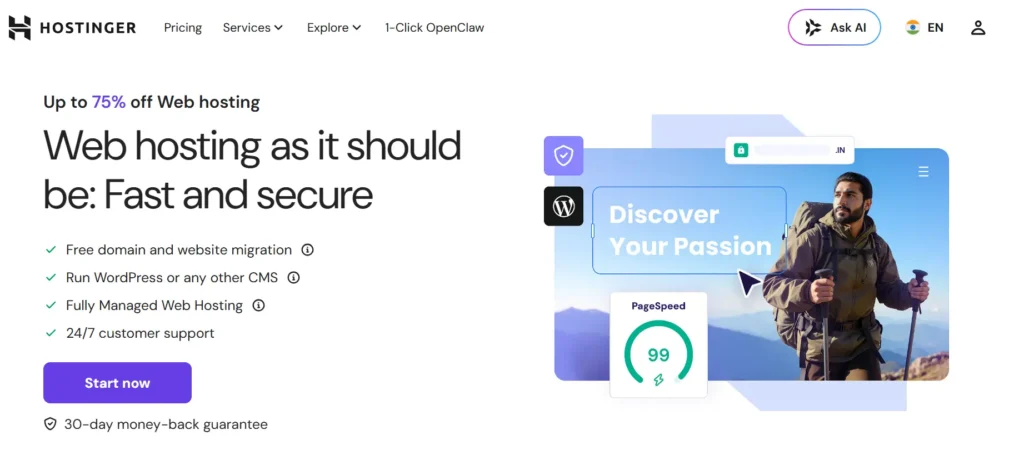
Hostinger takes our top spot for 2026. They have completely outpaced their old budget competitors by investing heavily in their infrastructure.
- Server Stack: Customized control panel running on top of LiteSpeed Enterprise servers.
- Storage Hardware: Pure NVMe SSD storage across all modern plans.
- Standout Features: Built-in Object Cache for WordPress, free automatic daily backups, and a global network of data centers.
Why This Made the List
Hostinger offers premium server features at a budget price point. Their integration with LiteSpeed means you get enterprise-grade caching without paying for expensive premium plug-ins. It handles traffic spikes with ease, making it the perfect choice for both beginners and growing business sites.
2. Kinsta: Best Managed Cloud Alternative for High Traffic
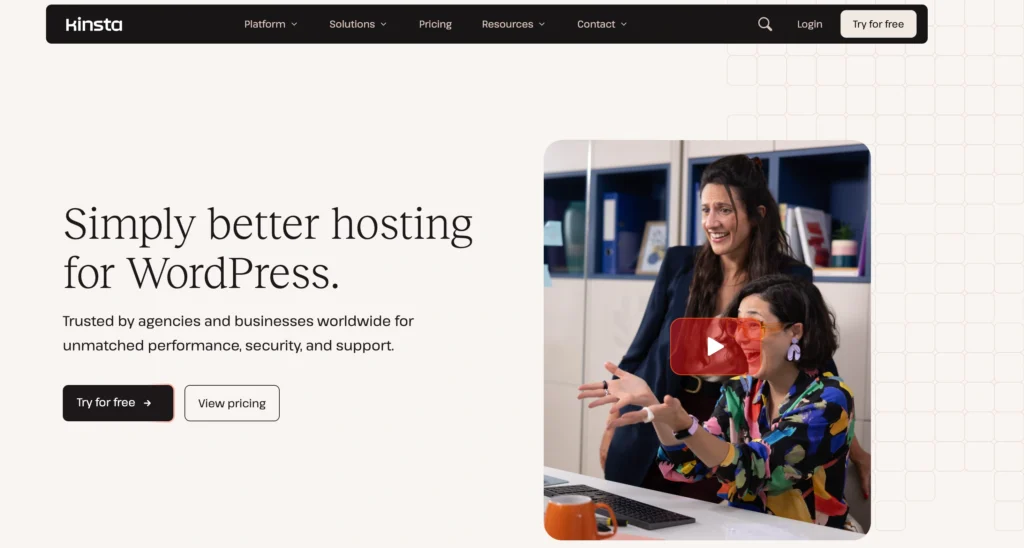
Kinsta ignores standard shared servers entirely. They built their platform directly on top of Google Cloud’s premium tier network.
- Server Stack: High-performance Nginx containerized environments.
- Storage Hardware: Enterprise-grade cloud storage infrastructure.
- Standout Features: Isolated resource environments, microsecond server-level caching, and automatic scaling adjustments.
Why This Made the List
Kinsta isolates every website inside its own separate Linux container. Your site shares absolutely zero software resources with anyone else. If your business site generates tens of thousands of dollars and cannot afford a single second of downtime, pay the premium for Kinsta.
3. SiteGround: Best Customer Support and Security Infrastructure
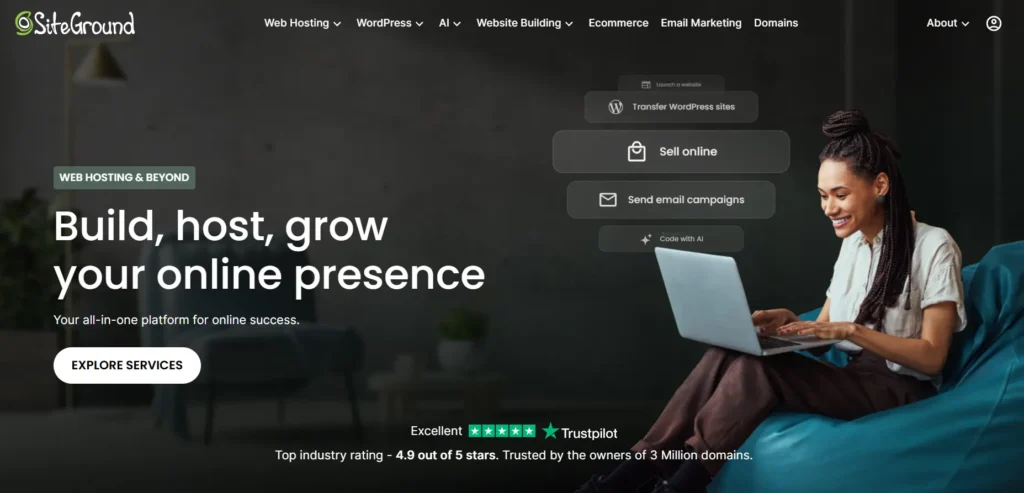
SiteGround is famous for their highly customized hosting platform built on top of Google Cloud hardware.
- Server Stack: Ultra-fast Nginx-based direct delivery setup with custom PHP executions.
- Storage Hardware: Google Cloud SSD storage arrays.
- Standout Features: Custom Speed Optimizer plug-in, custom Web Application Firewall (WAF), and instant chat support.
Why This Made the List
SiteGround provides the best technical support in the industry. If you break your site or run into a database error, their chat support team will log in and fix it for you in minutes. Their security stack blocks millions of brute-force attacks every single day before they can touch your WordPress site.
The Expert’s Hosting Migration Checklist
Print this out or copy it to your notes app. Run through these exact items before you pay a single dollar to a new hosting provider.
- [ ] Verify Storage Drive Type: Confirm the plan explicitly uses NVMe SSDs. Reject standard SSDs or HDD storage.
- [ ] Check Web Server Software: Look for LiteSpeed or Nginx. Avoid platforms running pure Apache configurations.
- [ ] Audit Resource Allocations: Ensure you get at least 1GB of RAM and clear CPU core allocations.
- [ ] Locate Data Centers: Check that they own server locations in the country where your main traffic source lives.
- [ ] Confirm Free SSL and Backups: Never pay extra for SSL certificates or daily backups. These must be included for free.
- [ ] Test Free Migration Services: Ask if their support team will move your site for free. Many top hosts will do the migration work for you.
Frequently Asked Questions
1. Will my WordPress website go down during the hosting migration?
No. If you follow the correct order, your site will see zero downtime. Your old site stays live on your old host while you copy the files over to the new host. The switch only happens when you change your domain nameservers. During that time, visitors seamlessly drop into either the old server or the new server until the global system syncs up.
2. Do I need to buy a new domain name to change my web host?
No. Your domain name and your web hosting are two completely separate things. Your domain name is the digital address, and your host is the physical house. You keep your domain exactly where it is and simply point its address pointers to your new home.
3. What happens to my email addresses when I move hosts?
If your email is managed through your hosting account (e.g., info@yourdomain.com inside cPanel), you must back up and migrate your email mailboxes along with your site files. If you use an external email provider like Google Workspace or Microsoft 365, your mail will not break as long as you copy your MX records exactly into your new DNS panel.
4. Can a slow web hosting provider hurt my Google SEO rankings?
Yes. Google explicitly uses page speed and Core Web Vitals as major ranking factors. If your server takes over two seconds just to respond to an initial request, Google will downrank your pages. Slow servers also cause human visitors to click away, which ruins your user engagement metrics.
5. Is free migration software safe to use for big websites?
Free plug-ins work perfectly for sites under 2GB in size. If your website has thousands of products, large video files, or massive database tables, free plug-ins can time out and fail mid-way. For giant sites, always use the professional migration team provided by your new host.
6. What is managed WordPress hosting and do I actually need it?
Managed hosting means the host handles server updates, security patches, daily backups, and server-level optimization for you. To be honest, most beginners do not need premium managed hosting plans that cost $50+ a month. Modern intermediate hosting accounts provide these automated tools built-in at a fraction of the cost.
Making the Final Cut
Do not let fear keep you tethered to a slow, expensive host. Moving your site is a simple procedural task that instantly unlocks faster load times, better security, and cleaner management tools.
Review your technical needs, check your target audience’s geographic location, and choose a host built on top of NVMe storage and modern server architecture. Your wallet, your site speed, and your sanity will thank you.