
You pull up your website on your phone. You wait. Three seconds pass, then four, then five. Your stomach drops because you know exactly what your visitors are doing: hitting the back button and giving their money to your competitor.
Wasting time on generic optimization tips will not fix this. Most online advice tells you to compress your images, delete old drafts, or install a free caching plugin. Do those things help? Marginally. But if your underlying server infrastructure is slow, you are just putting a racing stripe on a broken-down car.
Choosing the right host can save hundreds of dollars in lost sales and wasted development hours. Stop falling for flashy marketing buzzwords. Let’s look at the actual server architecture that forces your pages to load instantly.
What Actually Happens Behind the Scenes When a Site Loads?
Non-technical site owners view the hosting environment as a vague cloud folder holding their images and text. This misconception is exactly why people buy terrible, cheap plans. Your hosting server is a physical computer sitting in a high-security warehouse, and it has to work incredibly hard every time a visitor clicks a link.
The Request-Response Lifecycle
Clicking a link triggers a complex chain reaction. Your visitor’s browser sends a request across the internet to your hosting server. The server receives this request, boots up its processor, runs thousands of lines of code, queries a database, combines everything into a clean page, and sends it back.
Slow servers choke during the execution phase. Fast servers handle this computation in milliseconds. If your server is slow to respond, your visitor stares at a blank white screen, wondering if your business is still operational.
Hardware and Software: The Technical Specs That Dictate Speed
Hosting companies hide their worst technical flaws behind vague marketing copy like “unlimited bandwidth” or “turbo-charged performance.” Ignore these meaningless metrics. Check the actual hardware and system software listed in the small print.
NVMe SSD vs. Standard SSD: The Reality of Data Access
Think of standard Solid State Drives (SSDs) as fast, but limited by older connection cables. They use the same data transport pipelines originally designed for old, spinning hard disk drives. They cap out on data transfer speeds quickly.
NVMe (Non-Volatile Memory Express) SSDs plug straight into the high-speed pathways of the server’s motherboard. They read and write data up to six times faster than traditional SSD storage.
Every time WordPress loads a page, it pulls data from dozens of separate files and database tables. I’ve seen many people make this mistake: they spend days optimizing their code when their host is simply using slow, non-NVMe storage that creates a bottleneck.
LiteSpeed vs. Nginx vs. Apache: The Core Web Server Software
Web server software is the engine operating on the machine. It reads incoming traffic and dishes out your website data.
- Apache: This software is an outdated relic. It creates a completely separate process for every single browser connection. When twenty or thirty people access your site simultaneously, Apache drains your server memory and forces visitors to wait in a virtual queue.
- Nginx: Designed specifically to handle heavy concurrent traffic. It uses an asynchronous architecture, allowing a single server process to manage thousands of active visitors without flinching. It serves static elements like graphics and style sheets at blazing speeds.
- LiteSpeed: The undisputed king for WordPress sites in 2026. It handles high traffic volumes even better than Nginx. The real breakthrough is its native, server-level caching integration. It intercepts web requests before they even hit your database, serving pre-built web pages in a fraction of a millisecond.
RAM and CPU Cores: The Power Plants for High Traffic
Ignore the word “unlimited.” No computer has unlimited power, and neither does a web server.
CPU Cores dictate how many individual tasks your server can compute at the exact same moment. If you run an e-commerce storefront or a membership community, every user action triggers a calculation.
RAM (Random Access Memory) acts as the short-term memory vault holding the components of those active calculations. If your site experiences a surge in traffic and your plan only allocates 1GB of RAM, the server will run out of space and crash. Demand at least 2 dedicated CPU cores and 2GB to 4GB of RAM if you run a growing business.
Data Center Locations: The Physical Law of Latency
Data cannot travel faster than the speed of light. Latency is the time delay caused by physical distance. If your target buyers reside in Sydney, Australia, but your host stores your files in an Ohio data center, your data must travel thousands of miles through undersea cables for every single click.
Pick a hosting platform that lets you select your specific server location. Position your data center in the geographical region where your core audience lives.
How to Improve Website Speed with Better Hosting
Moving your site to a high-speed infrastructure requires precision. Follow this structural sequence to migrate your site safely and lock in maximum performance gains.
Step 1: Run a Raw Server Speed Test
Establish your performance baseline before changing anything. Use a tool like WebPageTest or Google PageSpeed Insights. Look closely at your TTFB (Time to First Byte) score.
TTFB measures how many milliseconds your host takes to start sending data back after receiving a request. If your TTFB is over 600ms on a basic page, your host is undeniably slow.
Step 2: Select a High-Performance Architecture
Avoid cheap shared plans that cram 5,000 websites onto one machine. Buy a Managed WordPress hosting plan, a Virtual Private Server (VPS), or an isolated cloud account.
Confirm that the new plan specifically includes NVMe drives, LiteSpeed or highly-optimized Nginx software, and isolated resource allocation.
Step 3: Package Your Site Architecture Safely
Install a dedicated backup tool like Duplicator or All-in-One WP Migration on your slow site. Generate a clean copy of your asset files, plugin folders, and core database.
Download this structured archive directly to your computer. Clean up old post drafts or spam comments first to make the file package as small as possible.
Step 4: Deploy the Archive on the New Server
Create a blank WordPress installation on your new high-speed account. Install the same migration plugin you used to build the backup package.
Upload your file archive directly into the new dashboard interface. Run the restoration process to overwrite the blank files and remap your internal database links automatically.
Step 5: Activate Server-Level Caching Systems
Turn on your host’s proprietary caching mechanisms immediately. If your new host uses LiteSpeed, activate the free LiteSpeed Cache plugin.
If they run on an Nginx foundation, turn on their server caching rules via their account control panel. This ensures your server saves pre-compiled pages to its memory, avoiding manual database re-read loops.
Step 6: Test Performance via a Local Hosts File Mod
Avoid changing your domain settings yet. Edit the local hosts file on your personal computer to link your domain name directly to the new server’s IP address.
Open your browser and navigate your site. This allows you to test the new, fast version of your website privately while regular web traffic still loads from your old provider.
Step 7: Update Your Nameservers and Verify Speed
Log into your domain account registrar (such as Cloudflare or Namecheap). Swap out your old host’s nameservers for your new performance nameserver addresses.
Wait 24 hours for the change to ripple across the global web network. Run your PageSpeed test again to verify your massive reduction in page load times.
Top 5 Hosting Providers for Speed and Performance in 2026
The hosting landscape is full of corporate traps. Large holding companies buy up historic, trusted hosting names, slice their support budgets, and stuff their server environments with too many accounts to scale profits. The following independent or highly specialized providers have rejected that framework and deliver genuine speed.
| Provider | Best Performance Metric | Server Stack Foundation | Control Panel Setup |
| Hostinger | Entry-Level Speed | LiteSpeed Enterprise | Custom hPanel |
| Kinsta | Enterprise Scale | Nginx + Google Cloud C3 | Custom MyKinsta |
| Cloudways | Custom Cloud Power | Nginx / Apache Hybrid | Cloudways Dashboard |
| WP Engine | Corporate Stability | Optimized Nginx + Flywheel | Specialized Portal |
| SiteGround | Small Business Balance | Nginx Custom Framework | Custom Site Tools |
1. Hostinger

Hostinger has spent the last few years completely revamping its server architecture. They moved away from legacy hosting models and standard storage drives, choosing instead to deploy pure LiteSpeed setups with fast data transport pipelines.
Why This Made the List
To be honest, most beginners don’t need a $150 enterprise cloud cluster to host a small business site. Hostinger offers true, server-level LiteSpeed processing and NVMe drives for a tiny fraction of the cost of premium hosting platforms. It stands out as our Top Pick for 2026 Speed on a Budget. Their dashboard simplifies advanced optimizations like object caching into a single, user-friendly toggle.
- Speed Software: Native LiteSpeed Enterprise integration with advanced LSCache protocols.
- Hardware Tier: Pure NVMe storage options across all business profiles.
- Global Access: Choose from multiple redundant data center zones spanning Europe, Asia, and North America.
2. Kinsta

Kinsta operates entirely on the premium tier of the Google Cloud Platform. They bypass traditional web server control frameworks entirely, opting instead for a highly specialized infrastructure environment built around isolated application containers.
Why This Made the List
Here is a secret most hosting companies won’t tell you: on a typical shared plan, if another website on your server gets hacked or draws a massive traffic spike, your site will slow down alongside it. Kinsta solves this via isolation. Your allocated CPU power and memory belong exclusively to your site. Their premium Google Cloud C3 virtual machines offer the fastest processing times available on the market today.
- Infrastructure Power: Built on isolated Google Cloud infrastructure utilizing compute-optimized environments.
- Edge Routing: Integration with Cloudflare’s global enterprise network edge for near-zero latency worldwide.
- Database Care: Automatic optimization sweeps keeping your database tables organized for faster queries.
3. Cloudways
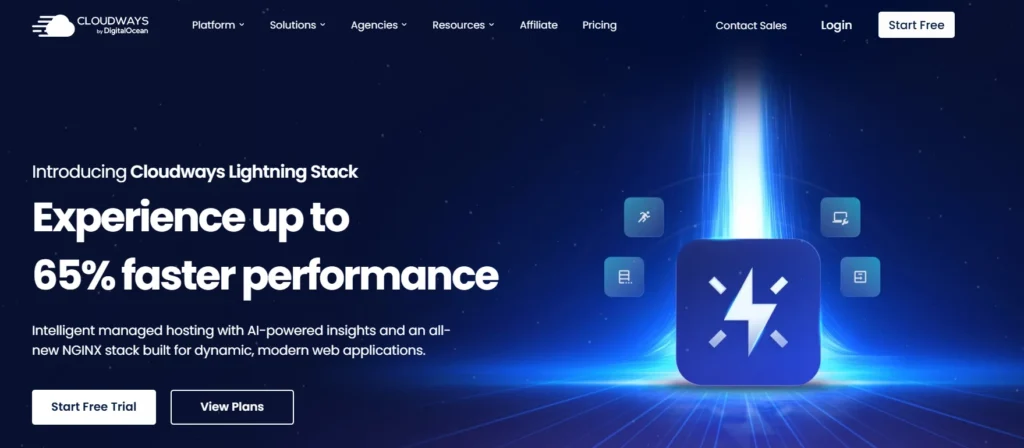
Cloudways acts as an intuitive management layer over top-tier raw cloud infrastructure providers like DigitalOcean, AWS, and Google Cloud. They handle the complex command-line setup, giving you a clean visual control layout.
Why This Made the List
Cloudways offers massive speed benefits for growing business owners who want complete control over their hardware allocations. Scale your dedicated server RAM and CPU processing power instantly with a simple slider button before launching a holiday marketing event. Their custom optimization framework combines multiple web technologies to load dynamic assets incredibly fast.
- Caching Engine: Proprietary Breathe Cache technology managing Memcached, Redis, Varnish, and Nginx setups.
- Resource Freedom: Dedicated server resources with zero background sharing limitations.
- Flexible Setup: Ability to change servery parameters, PHP memory ceilings, and execution limits manually.
4. WP Engine
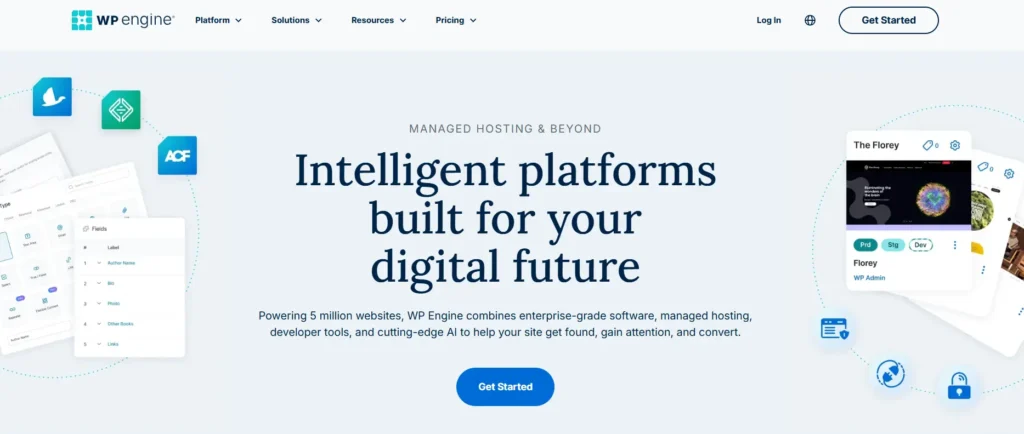
WP Engine is the original pioneer of managed WordPress hosting environments. They cater primarily to large corporate portals, scaling media environments, and digital development agencies requiring flawless staging controls.
Why This Made the List
WP Engine made our performance list because of their aggressive, multi-layered caching system called EverCache. It is optimized specifically to handle complex WordPress file frameworks. They also block malicious bots and hacking attempts before those bad requests ever reach your server, keeping your resources free to serve genuine prospective buyers.
- Speed Core: Advanced optimization layers built on high-performance Nginx infrastructure.
- Testing Setup: One-click staging and development options to test speed changes safely.
- Security Focus: Enterprise-level firewalls designed to keep malicious traffic out.
5. SiteGround

SiteGround sits perfectly between budget shared solutions and high-tier enterprise hosting structures. They build their custom web stack directly on top of Google Cloud’s fast network infrastructure.
Why This Made the List
SiteGround created their own customized PHP setup that executes processing requests up to 30% faster than standard PHP setups. They also include a custom performance plugin that connects directly to their server-level caching setups. This removes the need for complex, third-party optimization tools that often conflict with one another.
- Unique Tech: Custom-engineered ultra-fast PHP execution setups reducing time-to-first-byte metrics.
- File Distribution: Free global CDN integration making your site fast across different countries.
- Storage Setup: Premium NVMe storage allocations ensuring zero file-access delays.
Frequently Asked Questions
1. How exactly does a faster web host improve my search engine rankings?
Search engines like Google use page loading speeds as a critical, direct ranking signal within their evaluation algorithms. Slow hosts create high latency, causing your site to fail core performance assessments. Upgrading to a faster host lowers your loading metrics instantly, signaling to search engines that your site offers a high-quality user experience.
2. What is the difference between cloud hosting and standard shared hosting?
Shared hosting crowds thousands of separate accounts onto a single physical hard drive, forcing everyone to fight over the same memory pool and processor cores. Cloud hosting spreads your data across a vast network of synchronized machines. It provides isolated resource pools, meaning your site performance remains stable regardless of traffic surges elsewhere on the network.
3. What does TTFB mean, and why is it so important for my speed?
TTFB stands for Time to First Byte. It measures the exact duration between a user clicking your link and your hosting server delivering its very first byte of information back to the browser. If your TTFB score is slow, every optimization asset you install later will still be delayed by that initial server hesitation.
4. Can I choose a data center location that is different from where my business is based?
Yes, and you absolutely should if your audience is international. Choose your data center location based entirely on where the vast majority of your target traffic lives, rather than your personal physical location. If your office is in London but you sell products exclusively to buyers in New York, host your site in a North American data center.
5. Do I still need to use a caching plugin if I have high-performance hosting?
It depends entirely on your server type. If you migrate your site to a modern LiteSpeed server architecture, you should run the native LiteSpeed Cache plugin to link your WordPress database directly to the server’s pre-compiled caching layer. If you use an Nginx setup, your host will often handle caching at the server level, removing the need for heavy third-party plugins.
6. Is it hard to migrate my site if I don’t know how to code?
No, the process is much simpler than most people think. Modern high-quality hosting companies provide either dedicated migration plugins that automate the whole moving process with a few clicks, or they have engineering support teams that will move your files over for you at zero extra charge.